

Orbit Launcher
A radial launcher that blooms around your cursor on ⌥Space. Recents and pinned apps fan out in a ring: hover to aim, type to filter, release to launch. The best-looking way to open an app on a Mac.
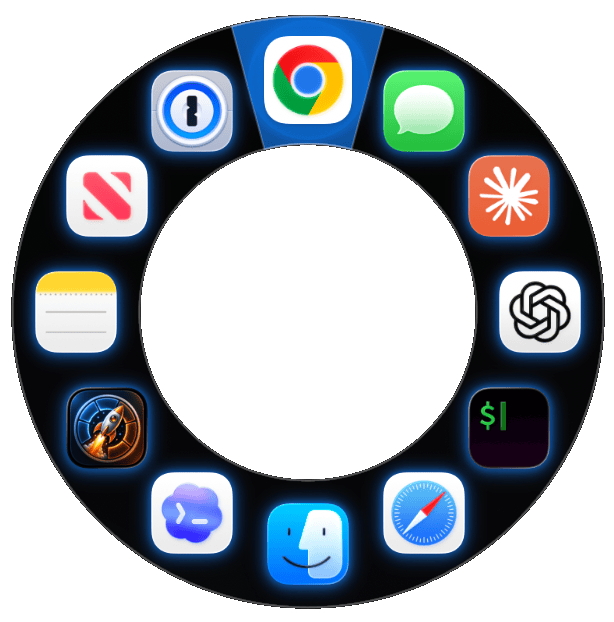
Everything you need to open an app. Nothing you don't.
A ring at your cursor, the keys you already hold, the apps you actually use. No search box to hunt for, no window to find.
A radial ring at the cursor
The launcher blooms open right where your pointer is, with no jump to the center of the screen and no menu to track. Your apps fan out in a clean ring you can read at a glance.
Hold or tap, your call
Pick a hold-to-show modifier like ⌥Space (release to launch), or a tap-to-toggle hotkey that keeps the ring open. Two trigger modes, one for whichever muscle memory you have.
Recents and pinned apps
The ring fills with the apps you reach for most, with your favorites pinned to fixed positions so they're always exactly where you expect. Less hunting, more launching.
Type to filter
Start typing and the ring narrows to what matches: type the start of any word and it finds the app. Aim with the mouse or filter with the keyboard, whichever is faster in the moment.
Signed & notarized
A native Swift app, signed with a Developer ID and notarized by Apple, so it opens cleanly with no Gatekeeper detour. No accounts, no telemetry, nothing leaves your machine.
Sparkle auto-update
Updates arrive quietly through Sparkle: checked once a day, installed when you say so. Your apps, settings and permissions all survive the update untouched.
Press, aim, launch.
Four moves, no friction, and your hand never leaves the keys it started on.
Press ⌥Space
Hold your hotkey: ⌥Space by default, or any modifier combo you set. macOS asks once for Accessibility so a background app can hear the keys; nothing else is read.
The ring appears
A ring of your recent and pinned apps blooms open right at your cursor. No window to find, no center-screen jump: it's already where you're looking.
Hover or type
Move the pointer to aim at an app, or start typing to filter the ring down to what matches. Double-tap the hotkey to pin the ring open if you're opening a few in a row.
Release to launch
Let go of the keys, or press Return, and the highlighted app opens. Press Esc to dismiss without launching. That's the whole loop.
Get Orbit Launcher.
Free, native Swift, and quiet by design: it lives in the menu bar with no Dock icon. No accounts, no subscriptions, no telemetry, no nonsense.
Orbit Launcher 0.3.1
Requires macOS 14 Sonoma or later · Apple Silicon · signed & notarized.
Prefer Homebrew? Homebrew 6 asks you to trust a third-party tap once before it runs any code, so grant trust, then install:
brew trust --cask marcvig/tap/orbit-launcher
brew install --cask marcvig/tap/orbit-launcher
Common questions
macOS says it "can't be opened because Apple cannot check it"
You shouldn't see this: Orbit Launcher is signed with a Developer ID and notarized by Apple, so Gatekeeper normally lets it open straight away. If a stray copy or an old download trips the warning, right-click the app in Applications and choose Open, or go to System Settings → Privacy & Security and click Open Anyway. After that it opens normally every time.
Is it Apple Silicon only?
Yes. Orbit Launcher is a native Apple Silicon build and requires macOS 14 Sonoma or later. It runs as a menu-bar utility with no Dock icon by default.
How do updates work?
Updates come through Sparkle, the standard macOS update framework. Orbit Launcher checks once a day and offers an update when one is available: you choose when to install. Your apps, settings and Accessibility permission all carry over, so there's nothing to set up again. You can also check manually from the menu-bar icon.
How do I uninstall it?
Quit Orbit Launcher from the menu-bar icon, then drag Orbit Launcher from your Applications folder to the Trash. If you'd like to tidy up fully, remove its entry from System Settings → Privacy & Security → Accessibility, and from Login Items if you turned on Launch at Login. It stores no data outside its own preferences.